Launch your business with a free logo
Get high-quality logo files that you can download and use everywhere for free!
Or pick a template below to edit
Change the text, colors, font, icons and much more!
Trusted by business owners around the world
Millions of users have trusted LOGO.com’s free logo maker and LOGO Pro as a resource to set up, launch, and grow a business they love.
Your logo. Your business. Our tools.
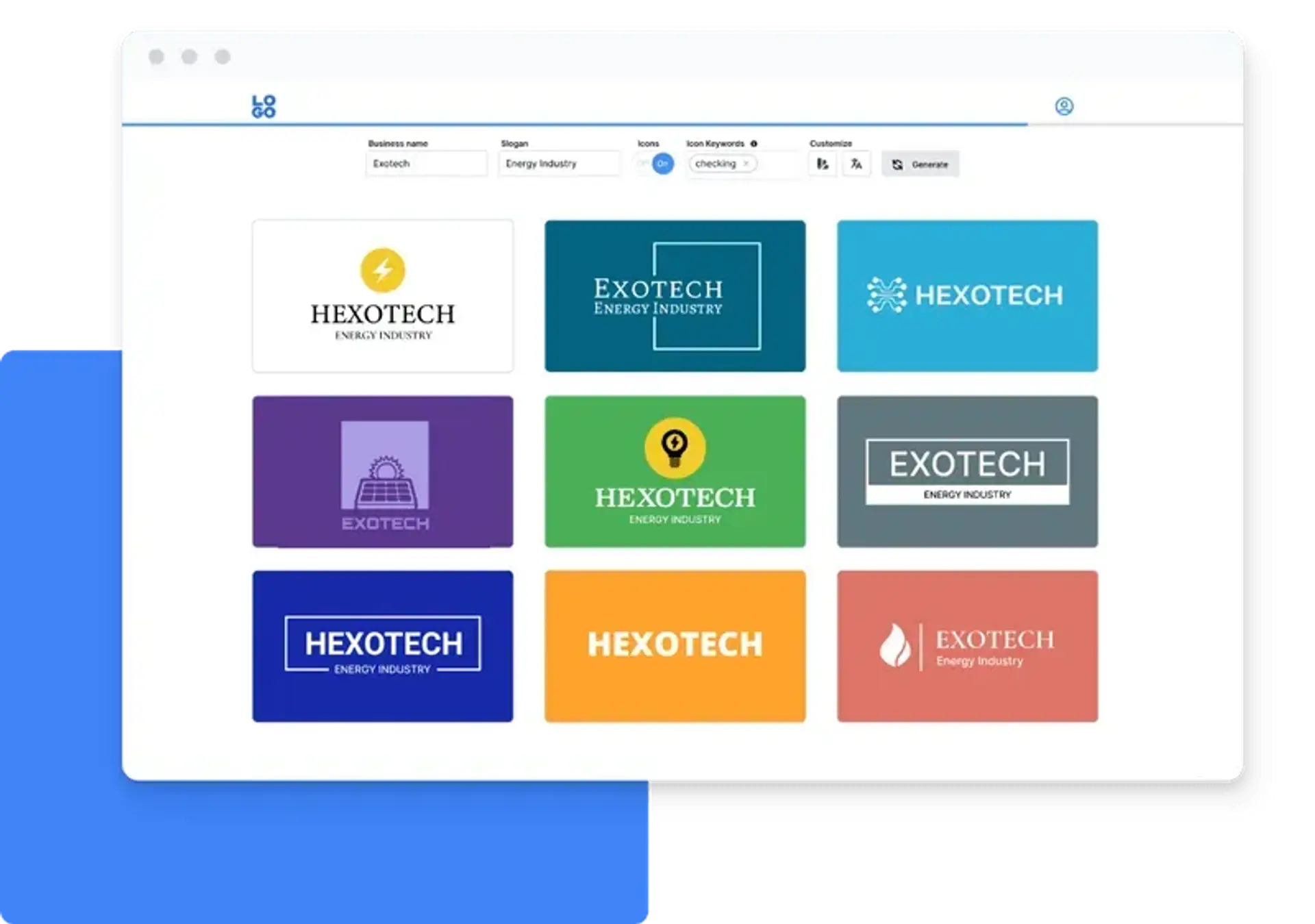
Step 1: Choose your favourite logo design
Our free online logo generator gives you hundreds of logo design options at no cost. Customize them and download your brand logo for free in high-resolution formats such as PNG, SVG vector files, and more.
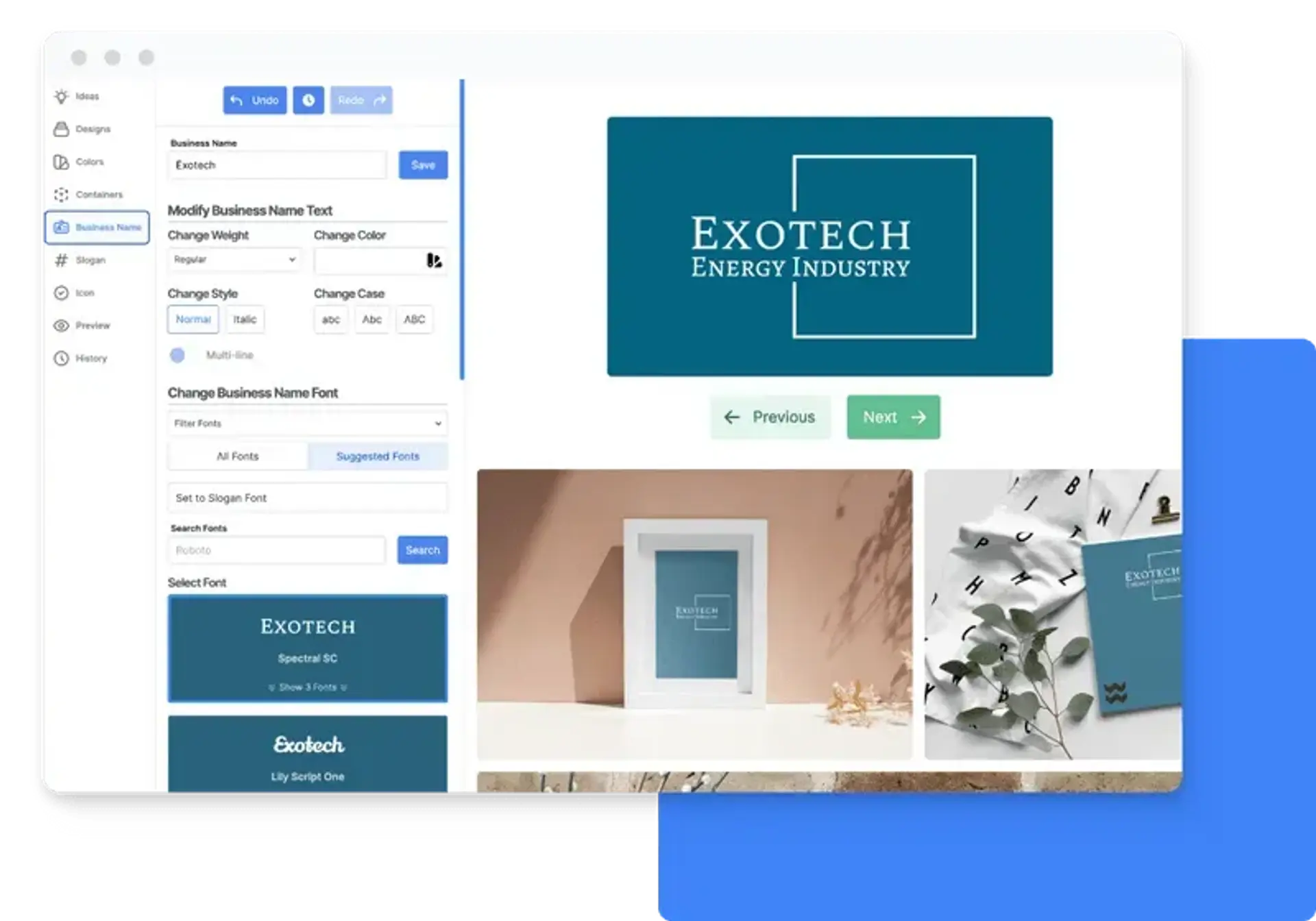
Step 2: Customize your free logo
Customers have described our logo editor as “fun”. Get access to premium fonts, hand-picked icons, and professional design layouts to customize your logo until you get a design you absolutely love.
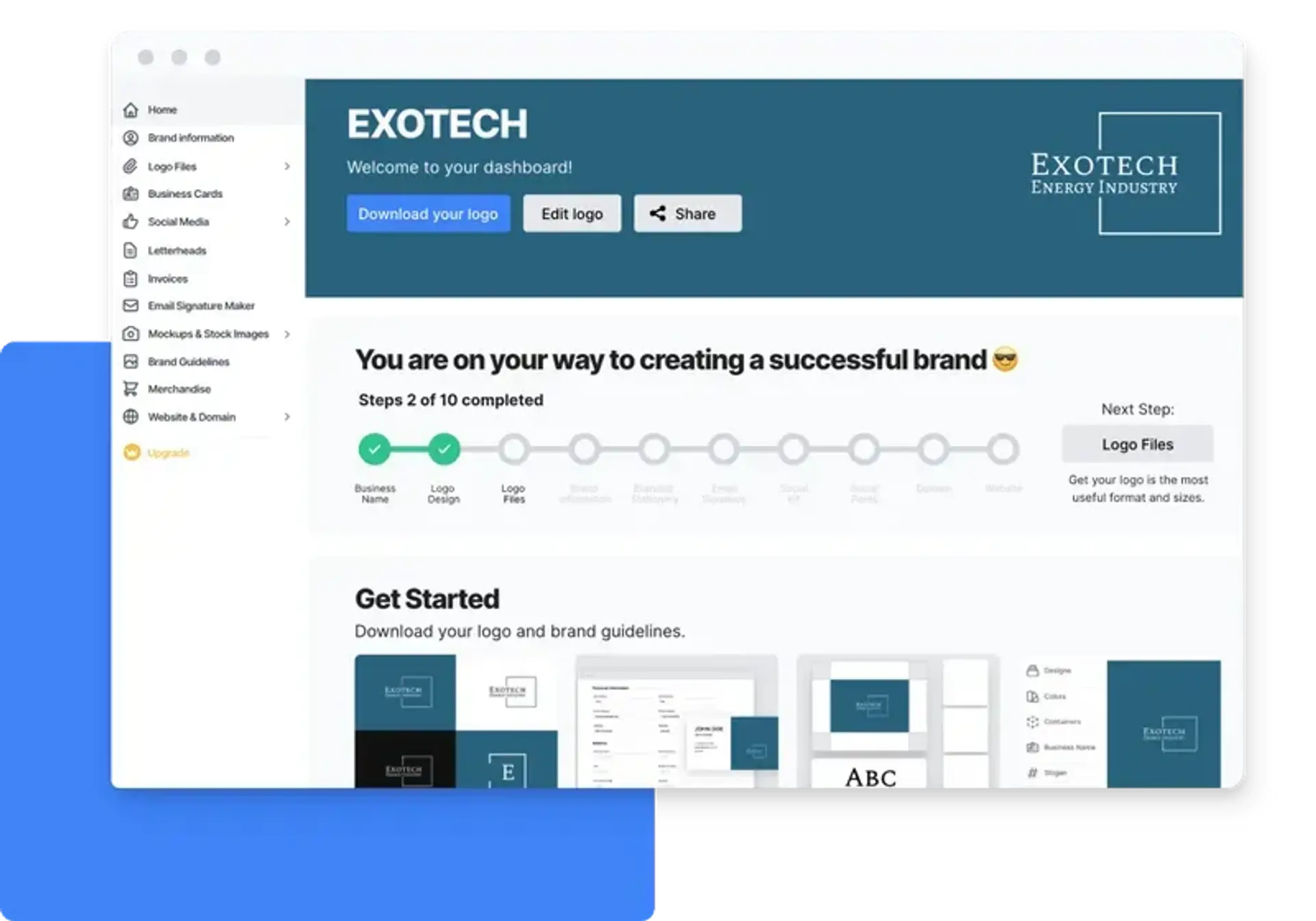
Step 3: Launch your business
The LOGO Pro subscription plan is optional and gives you access to Stitch, our all-in-one design tool that offers premium templates to set up and launch your business in minutes.
Ready to set up your business?
Stitch: All-in-one Design Tool
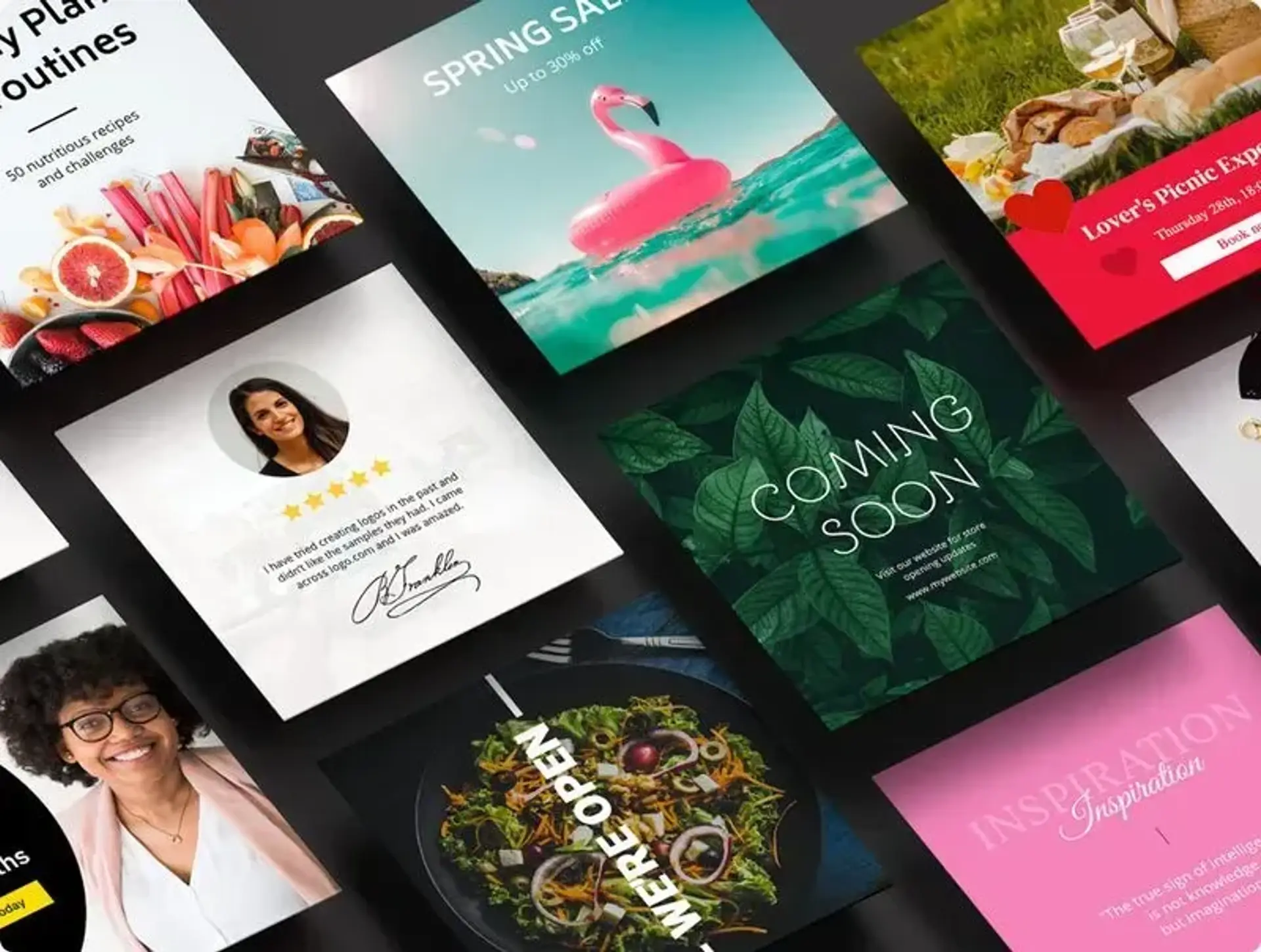
Stitch is our custom design tool with hundreds of templates to help you launch, build, and grow your business. These templates already include your logo and other branding elements. You can easily edit or modify your designs, or create new ones, at any time.
LOGO.com FAQs
How can I design a logo on LOGO.com?
To design a logo on LOGO.com, start by adding your business name and (optional) slogan, and the platform will generate hundreds of logo designs.
The logo editor is super easy and fun to use. It demands no design or tech knowledge, and anyone can use it without instructions or training. It’s intuitive and streamlined. Just pick a design and start customizing.
When you’re happy with the result, download the logo for free and start using it immediately!
Is the logo maker truly free?
Yes, the logo you create on LOGO.com is 100% free. You’ll receive logo files in full-color, high-resolution file formats such as vector, PNG, SVG, and JPG - for no cost
How do I download my free logo?
You use the editor on LOGO.com to create a logo design. Inside your LOGO.com dashboard, you can download your logo files for free. You’ll also receive an email with a link to your dashboard.
Can I edit a logo after I create it?
Yes. After your logo is created, you can edit your logo's layout, design, colors, font, business name, and slogan at any time for no charge.
Do you share font files?
Absolutely! You don't need to register an account to find the name of the font used for your business name and slogan. However, the account and paid plan will also give you access all of LOGO.com's tools for setting up your online brand.
Can others recreate my logo?
LOGO.com generates logo options from millions of different inputs (color, icons, font, size, layout, text), so the likelihood of someone recreating your exact logo is slim to none.
We do not remove the icons or other elements used in your logo after you have used them in our editor. But we are drawing from a pool of over five million icons so the chances of someone choosing the same icon as you are slim.
Unlock your business potential with useful resources
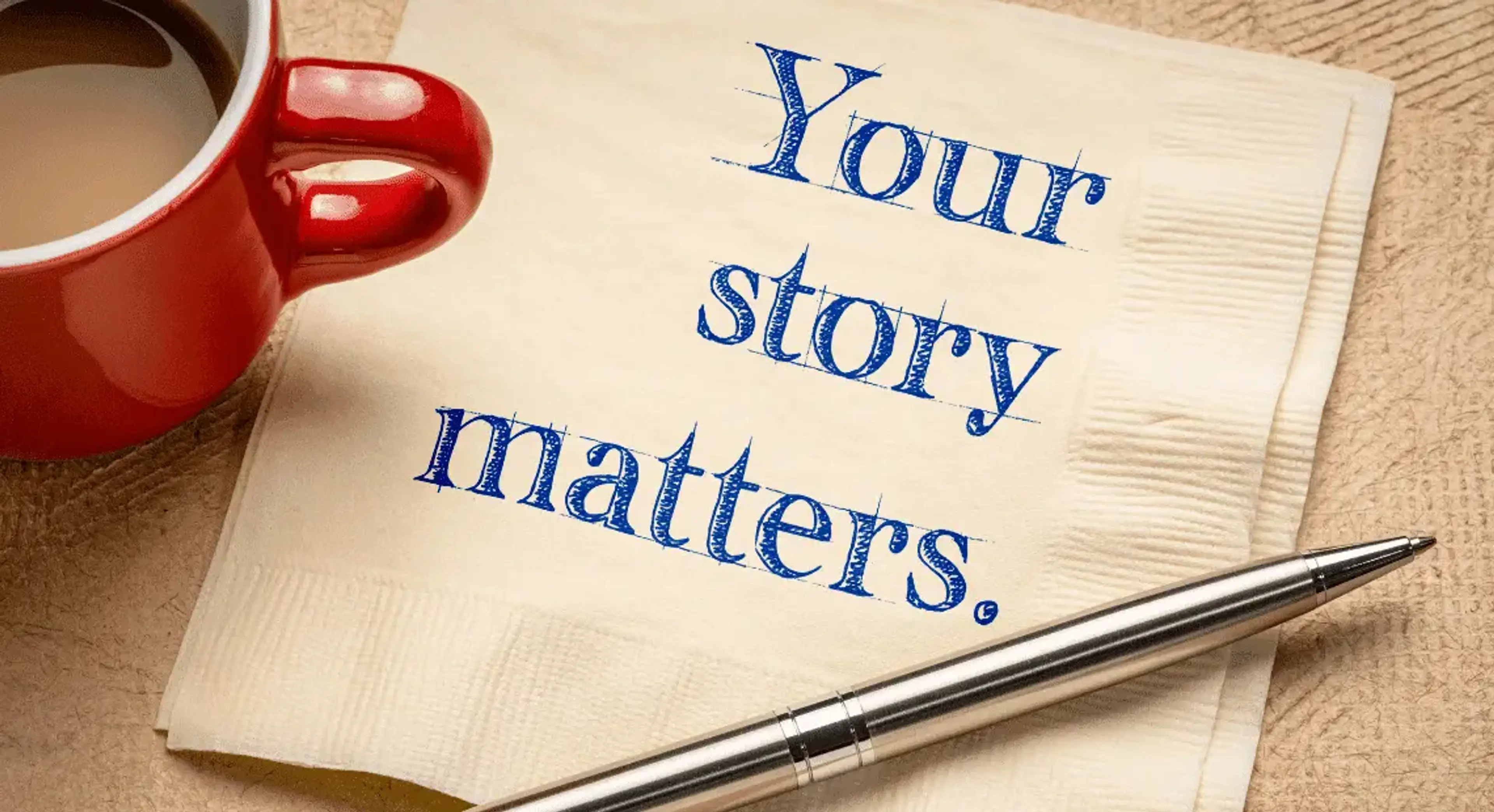
July 21, 2022 by: Aakash Shewakaramani
Building a brand story means diving into the core of your business. Develop a great brand story with this simple guide, plus brand examples.
![How To Use LinkedIn For Business [16 Effective Strategies]](/image-cdn/images/kts928pd/production/39f45c8a9a42d6c1b98fc025153c1dd4bd12725f-1140x620.webp?w=3840&q=72)
September 1, 2022 by: Gareth Mankoo
Viewers exposed to ads on LinkedIn are 6x more likely to convert. Check out the 16 ways to use LinkedIn for business to grow your audience.

May 17, 2023 by: Gareth Mankoo
A professional email signature speaks credibility for your business. These 15 best practices will ensure design and hierarchy perfection.